
To play Vintage Story with friends on a dedicated server, add their accounts to the whitelist and share the server address and port. Everyone needs the same game version as the server.
How to play Vintage Story with friends on a dedicated server
Your players need Vintage Story, with their official game account, on the same version as the server.
Your server's address is in the panel's “Network” tab: a name like play.labarogames.com followed by a port. To join:
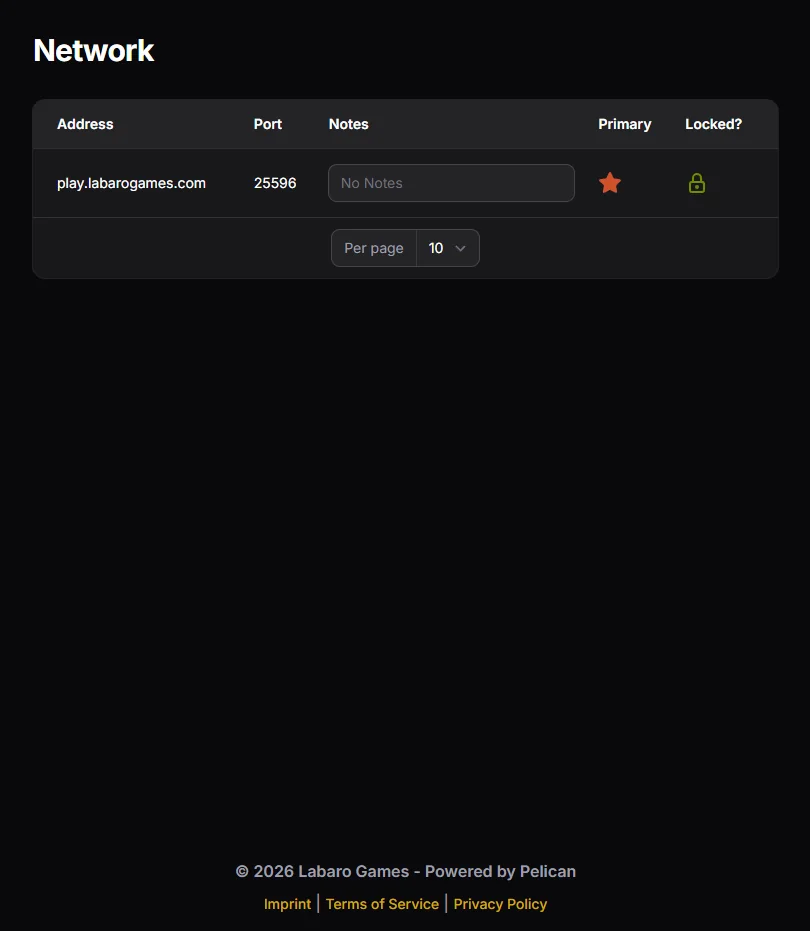
- In the game, go to “Multiplayer” and press “Add server”.
- Type the address and the port separated by a colon, for example
play.labarogames.com:42430. - Save and join.
How to add friends to the Vintage Story whitelist
Vintage Story dedicated servers start with the whitelist on: only the players you add can join. Type this in the “Console” tab, once per player, with their Vintage Story account name:
/player PlayerName whitelist on
To remove someone, use the same command with off.
If you'd rather let in anyone who knows the address, turn the whitelist off:
/serverconfig whitelistmode off
How much RAM does a Vintage Story server need?
Vintage Story needs no memory settings: it uses your plan's RAM directly.
Labaro Games has no per-plan player limit. In “Startup”, “Max Clients” sets the concurrent player limit, up to 256, and defaults to 16. Choose RAM based on your group's world and mods.
| Your server | Recommended RAM |
|---|---|
| Small group, no mods | 2 GB |
| With mods or large worlds | 4–6 GB |
What uses the most is generated terrain: the more people explore, the more memory and disk the world uses.
Signs you're short of memory
- The server shuts down by itself with no obvious error.
- Stutters every so often even with few players online.
- Terrain is slow to load when exploring.
If that happens, upgrade your plan's RAM from the store and restart.
How to install ModDB mods on a Vintage Story server
You can install any mod from the official Vintage Story mod site (ModDB). No mods are banned.
- On ModDB, download the mod in the version that matches your server's version. It's a
.zipfile: don't extract it. - Stop the server.
- In the “Files” tab, go into
data/Mods, press “Upload” and upload the.zip. - Start the server.
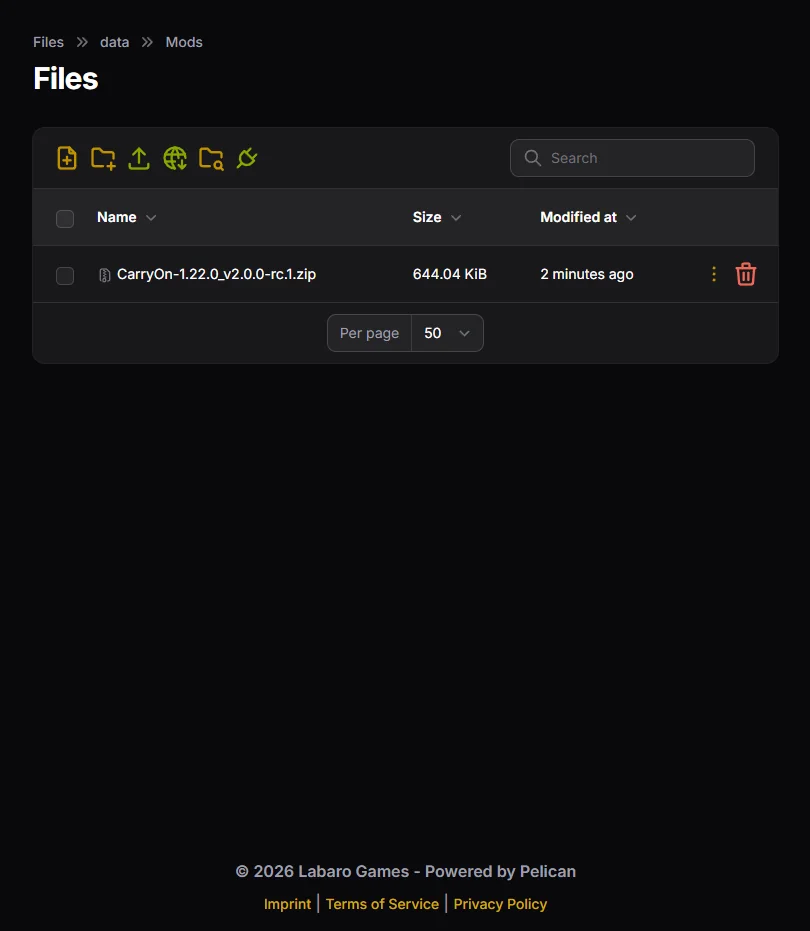
To remove a mod, delete its .zip from data/Mods with the server stopped.
To join, your players only need to install mods that the server requires on the client. Server-only mods are installed on the server alone.
How to upload a Vintage Story world to a dedicated server
You can bring over a world you've played on your PC:
- On your PC, worlds are in
%appdata%\VintagestoryData\Saves\. Each world is a single.vcdbsfile. - Stop the server from the panel.
- In the “Files” tab, go into
data/Savesand, if you want to keep it, renamedefault.vcdbs. - Upload your file with “Upload” and rename it to
default.vcdbs. - Start the server.
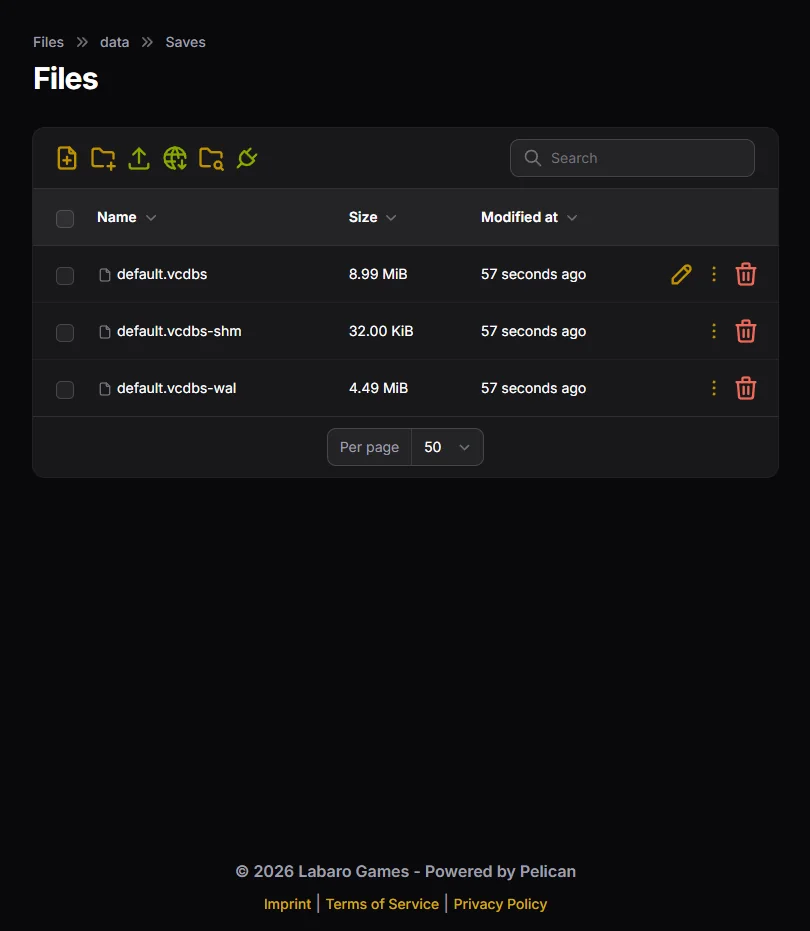
For large files use SFTP: the connection details are in “SFTP Information” in the “Settings” tab, and the password is your panel password.
How to generate a new Vintage Story world
- Stop the server.
- In
data/Saves, renamedefault.vcdbs(for example toold.vcdbs) or delete it. - If you like, change the seed and game mode in the
WorldConfigofserverconfig.json. - Start the server: it creates a new world.
How to back up and restore your Vintage Story world
Every server includes 1 backup, in the “Backups” tab:
- Create: “Create Backup”. Best done with the server stopped, so the backup is consistent.
- Restore: “Restore”. You can tick “Delete all files before restoring backup?” to put the server back exactly as it was.
- Download: “Download”, to keep a copy on your PC.
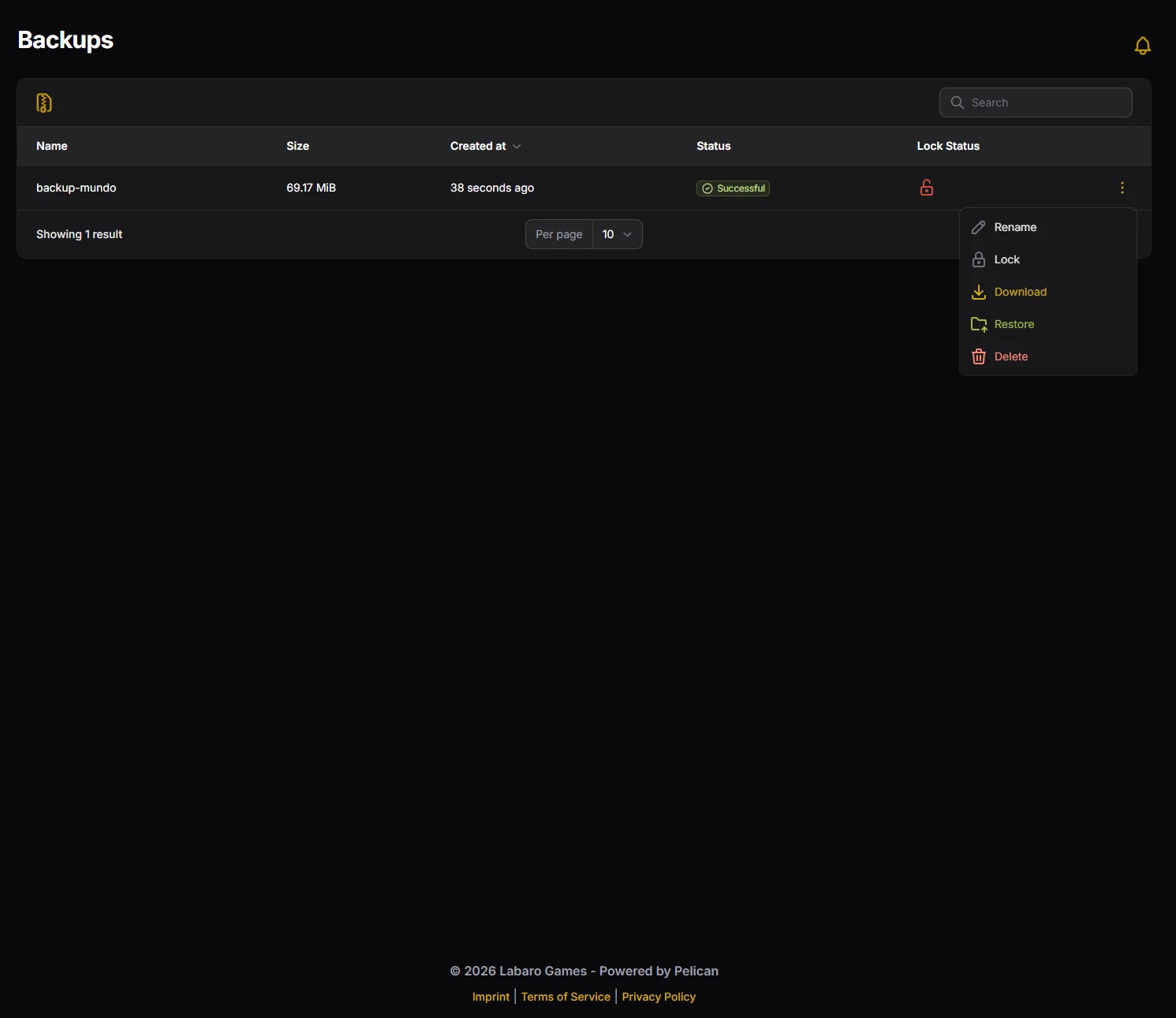
Backups don't use your server's disk space.
Automatic backups
They're not on by default, but you can schedule them in the “Schedules” tab: create a schedule (daily, for example) with a backup task. Each new backup replaces the previous one.
How to update your Vintage Story server and match the client version
The server installs the latest stable release and stays on that version until you update it manually.
To move to the latest version:
- Make a backup (how to back up your world).
- In the “Settings” tab, press “Reinstall” under “Reinstall Server” and confirm with “Yes, Reinstall”.
- The server downloads the latest version of the branch set in “Release branch”. Your world, settings and mods stay as they were.
- Ask your players to update the game to that same version.
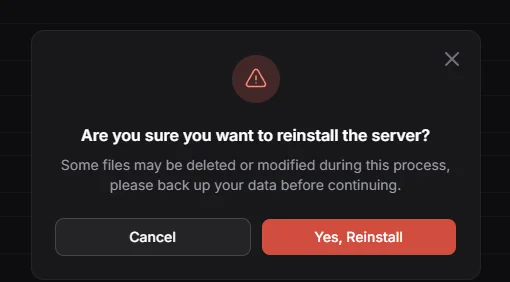
Unstable branch
To try the game's development versions, change “Release branch” to unstable in “Startup” and reinstall as above. To go back, set stable and reinstall.
How to configure your Vintage Story server and world
From the panel
The “Startup” tab has two options:
| Field | What it controls | Default |
|---|---|---|
| “Max Clients” | Players at once, up to 256. There's no per-plan limit | 16 |
| “Release branch” | stable or unstable (update the server) | stable |
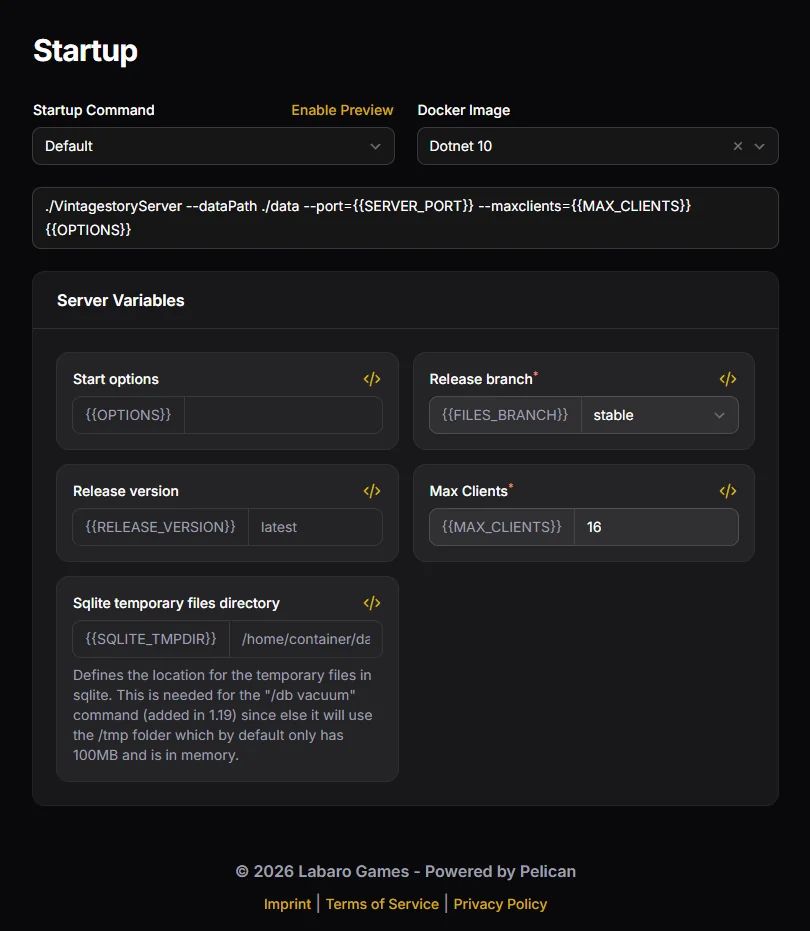
The serverconfig.json file
Everything else is changed in the configuration file, from the “Files” tab:
- Stop the server.
- Go into the
datafolder and openserverconfig.json. - Change the values and save.
- Start the server.
| Setting | What it controls |
|---|---|
ServerName | The server's name |
ServerDescription | The description in the public server list |
WelcomeMessage | The message players see when they join |
Password | The password to join. Empty: no password |
AdvertiseServer | true to show the server in the public server list. It's off by default |
AllowPvP | Whether players can hurt each other |
WhitelistMode | The whitelist: 0 (default, on for dedicated servers), 1 off, 2 on |
The world
World settings are in the WorldConfig section of the same file. The most useful ones:
| Setting | What it controls |
|---|---|
Seed | The world seed |
WorldName | The world's name |
PlayStyle | The game mode: survival, exploration, creative… |
WorldType | The terrain type |
Admins
Type this in the “Console” tab, with the / in front:
/op PlayerName
That gives the player the admin role. From then on they can use the admin commands in game.
Most configuration changes require restarting the server.
How to open your Vintage Story server panel
Your server is created automatically when you pay and starts as soon as it finishes installing.
The panel (panel.labarogames.com) is a separate account from the store, but it's created for you with the same email:
- After paying you'll get an email from the panel with your username and a button to set your password. Click it and choose one.
- Log in at panel.labarogames.com with your email and that password. You can also sign in with Google if your email is a Google account.
- Your server appears in the list. From the store, the “Go to server” button takes you straight to it.
You'll know the server is ready when the “Console” tab shows Dedicated Server now running on Port.
Browse our Vintage Story hosting plans or explore our community servers. If you also play Valheim, see how to move a Valheim world to a dedicated server.
Frequently asked questions
Why is my Vintage Story server refusing to let a friend join?
If the whitelist is on, add their account name from “Console” with /player PlayerName whitelist on.
What if my Vintage Story version doesn't match the server?
Check the version shown in “Console” when the server starts, then install that same game version from the Vintage Story website.
Why won't my Vintage Story server start after installing a mod?
Check the end of “Console” for the failing mod. Make sure it supports your server version and that you've installed any mods it depends on.
Where is the Vintage Story world save on the server?
In “Files”, the world the server loads is at data/Saves/default.vcdbs.
Stuck?
Message us on Discord and the people who run the servers will help.