
To play Valheim with friends on a dedicated server, change the server password and share the join code. Labaro Games enables crossplay and updates on startup by default. This guide covers how to get your group connected, choose RAM and upload or restore your world.
How to play Valheim with friends on a dedicated server
Your players only need Valheim up to date and the server password. There are three ways to join:
| Way | How |
|---|---|
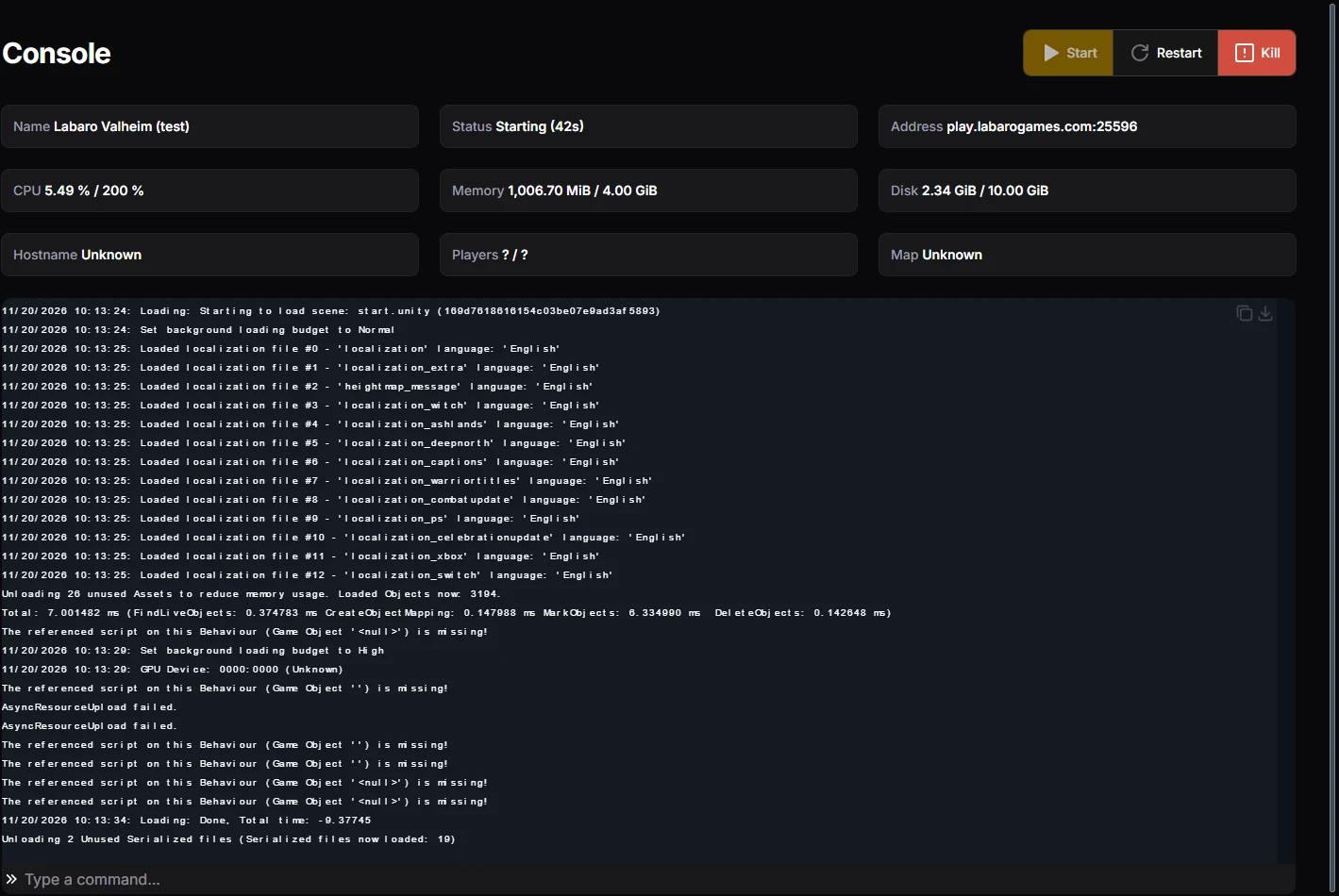
| By address | In the game, “Start game”, pick a character and go to the “Join game” tab. Press “Add server” and type the address and port from the panel's “Network” tab, for example play.labarogames.com:25596 |
| By code | The same, but type the join code in “Add server” instead of the address |
| From the server list | In the “Join game” tab, filter by “Community” and look for your server's name |
When joining, the game asks for the password.
The join code shows in the “Console” tab on startup, in a line like Session "A Labaro Games Server" with join code 123456. It changes every time the server restarts, so send it to your players again after each restart. To join by address, use the hostname and port shown in the panel. The hostname stays the same even if the server’s IP address changes.
Valheim crossplay on Steam, Xbox and PC Game Pass
Crossplay is on by default: Steam, Xbox and PC Game Pass players can play together. The easiest way for Xbox and Game Pass players to join is with the join code.
If all your players are on Steam and you'd rather not use it, set “Enable Crossplay” to 0 in “Startup” and restart.
How to set up your Valheim server
Change the server password before playing
Your server comes with the password secret and is visible in the public server list. Change it before you play:
- In the “Startup” tab, change “Server Password”. It has to be between 5 and 20 characters.
- Change “Server Name” too if you want a different name in the server list.
- Restart the server from the “Console” tab.
Valheim server startup settings
Everything is configured from the “Startup” tab. Changes apply when the server restarts.
| Field | What it controls | Default |
|---|---|---|
| “Server Name” | The name in the server list, up to 60 characters | A Labaro Games Server |
| “Server Password” | The password to join. It's required | secret |
| “World Name” | The world the server loads | Dedicated |
| “Public Server” | 1: listed publicly. 0: join only by address or code | 1 |
| “Enable Crossplay” | 1: Steam and Xbox together. 0: Steam only | 1 |
| “Auto Update” | 1: updates on startup | 1 |
The other “Startup” options are the game's own automatic backups (see Backups) and the beta branch (see Beta branch).
Several worlds
You can keep several worlds on the same server and choose which one loads:
- Change “World Name” in “Startup”, for example to
Midgard2. - Restart. If there's no world with that name, the server creates a new one.
To go back to the previous one, set its name again and restart. Changing the name doesn't rename or delete the previous world.
Admins
Admins can use commands like kick, ban or save from the in-game console (F5 key). To give admin rights:
- Stop the server.
- In the “Files” tab, go into
.config/unity3d/IronGate/Valheim/and openadminlist.txt. - Add the player's ID, one per line. The player sees it by pressing F2 while on your server. Copy it exactly, with its prefix and capitals:
Steam_7656…for Steam andXbox_…for Xbox or Game Pass. - Save and start the server.
The same folder has bannedlist.txt (banned players) and permittedlist.txt: if you put any IDs in the latter, only those players can join.
How much RAM does a Valheim server need?
There's no per-plan player limit: the maximum is 10, the game's own limit.
Valheim needs no memory settings: it uses your plan's RAM directly.
| Your server | Recommended RAM |
|---|---|
| Small group, little explored world | 4 GB |
| Large or heavily built world | 6–8 GB |
Very large bases, with lots of pieces or lots of tamed animals, are what loads the server most.
What to check if your Valheim server keeps crashing
- Stutters, or enemies that move in jumps.
- The server takes a long time to save or shuts down by itself.
If the server is running short of memory, upgrade your plan's RAM from the store and restart.
How to update your Valheim server and fix “Incompatible version”
With “Auto Update” set to 1 (the default), the server checks for and installs Valheim updates every time it starts. When a patch comes out, restart the server and ask your players to update their game. If “Incompatible version” still appears, check that everyone is on the same branch.
If you set it to 0, the server stays on its current version. Your players won't be able to join as soon as Steam updates their game, so don't turn it off unless you know why.

Beta branch
To try Valheim's public test version, type public-test in “Beta Branch” (and, if the branch needs one, its password in “Beta Password”) and restart. Your players have to be on the same branch. To go back to the regular one, leave “Beta Branch” empty and restart.
How to upload a Valheim world to a dedicated server
You can bring over a world you've played on your PC:
- On your PC, open
%userprofile%\AppData\LocalLow\IronGate\Valheim\worlds_local\and locate your world’s folder. - Stop the server from the panel.
- Use SFTP to upload the whole world folder, including its subfolders, to
.config/unity3d/IronGate/Valheim/worlds_local/. Check the result in “Files”. The save contains_main.1.db2(world data),_main.1.fwl2(metadata) and supporting files such as.chunks,.chunkand.ok. - In “Startup”, set “World Name” to the exact name of the world folder, matching capitalization.
- Start the server.
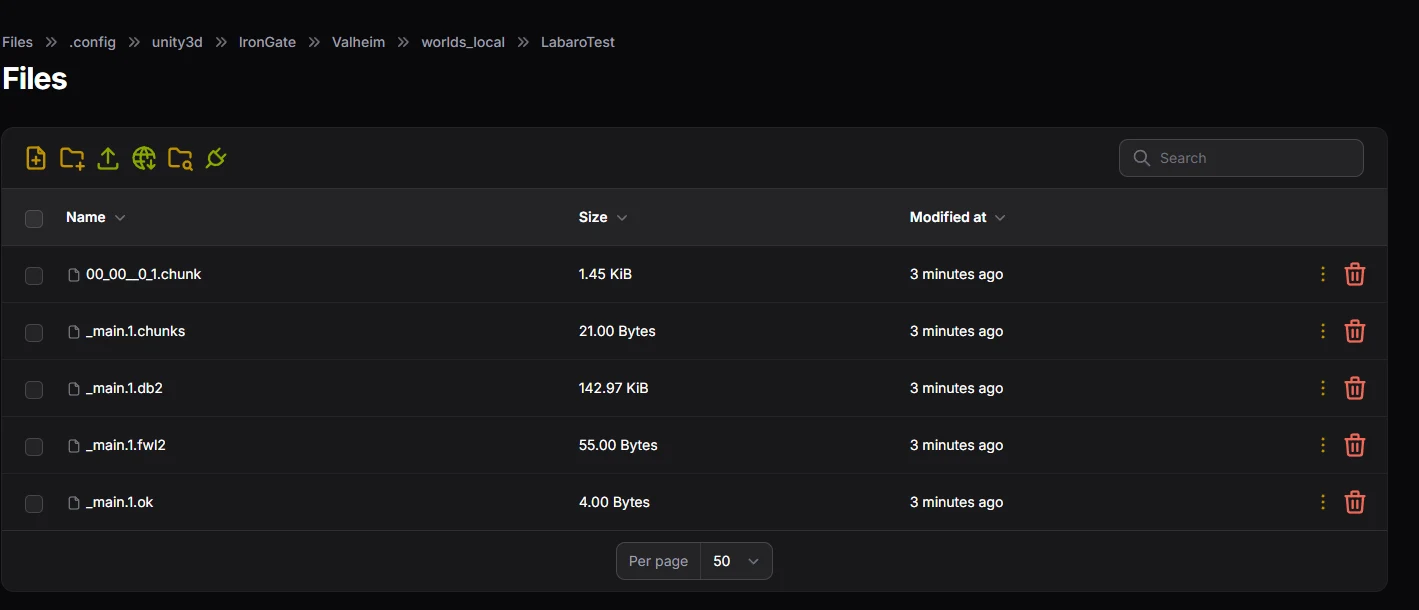
The SFTP connection details are in “SFTP Information” in the “Settings” tab, and the password is your panel password.
To take the server's world to your PC, do the same in reverse: download the whole world folder and copy it into worlds_local on your PC.
Backups
Your server has two kinds of backup: the panel's and the ones Valheim makes itself.
Panel backups
Every server includes 1 backup, in the “Backups” tab:
- Create: “Create Backup”. Best done with the server stopped, so the backup is consistent.
- Restore: “Restore”. You can tick “Delete all files before restoring backup?” to put the server back exactly as it was.
- Download: “Download”, to keep a copy on your PC.
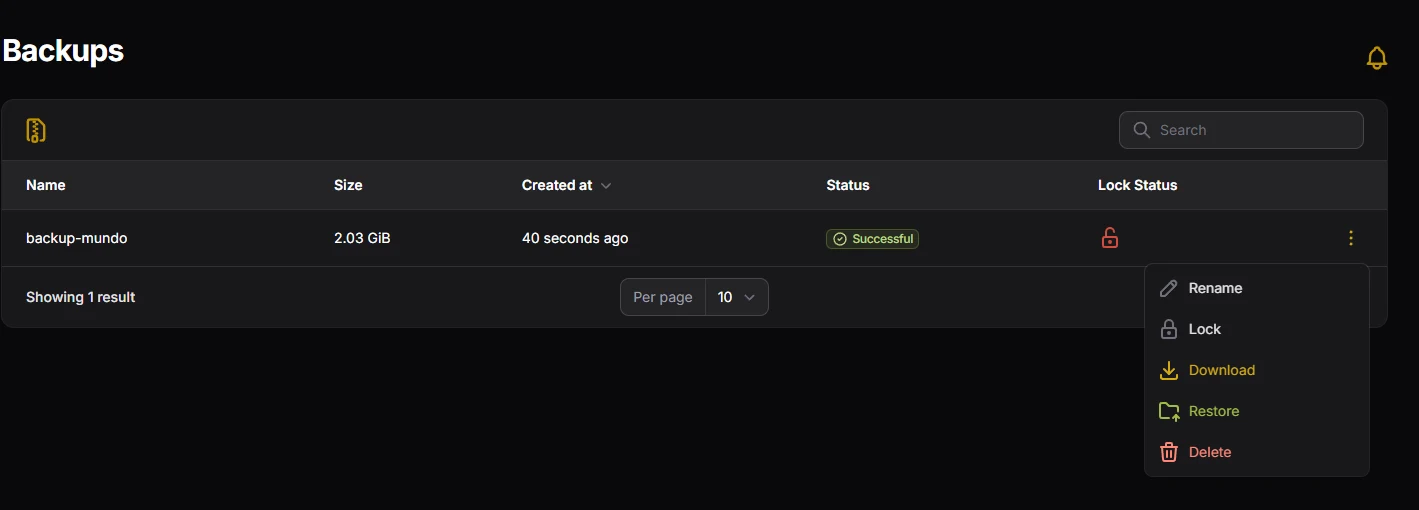
Panel backups don't use your server's disk space. They're not on by default, but you can schedule them in the “Schedules” tab: create a schedule (daily, for example) with a backup task. Each new backup replaces the previous one.
The game's own backups
Valheim also keeps backups of your world on the server, in the same worlds_local folder. They're set in “Startup”:
| Field | What it does | Default |
|---|---|---|
| “Backup Interval” | How often the world is saved, in seconds | 1800 (30 minutes) |
| “Backup Count” | How many backups are kept | 4 |
| “Backup Shorttime” | Age of the first backup, in seconds | 7200 (2 hours) |
| “Backup Longtime” | Time between the other backups, in seconds | 43200 (12 hours) |
With the defaults you have a backup from 2 hours ago and three more, 12 hours apart. These backups do use your server's disk.
To recover a save from a complete copy, stop the server and set the current world folder aside. Put the backup folder in worlds_local under the name specified in “World Name”, then start the server again. To restore a whole-server backup, use “Restore” in “Backups”.
Mods on the official Valheim server
The server is Valheim's official one and doesn't support mods.
How to access your Valheim server panel
Your server is created automatically when you pay and starts as soon as it finishes installing.
The panel (panel.labarogames.com) is a separate account from the store, but it's created for you with the same email:
- After paying you'll get an email from the panel with your username and a button to set your password. Click it and choose one.
- Log in at panel.labarogames.com with your email and that password. You can also sign in with Google if your email is a Google account.
- Your server appears in the list. From the store, the “Go to server” button takes you straight to it.
See the Valheim hosting plans or browse our community servers. If you also play Project Zomboid, see our guide to migrating a Zomboid multiplayer save.
Frequently asked questions
Why does my Valheim server load a new world after I upload my save?
Check that you uploaded the whole world folder to worlds_local and that “World Name” matches the folder name, including capitalization. Restart the server.
Why isn't my Valheim server showing up in the server list?
Check that “Public Server” is set to 1 and look under the “Community” filter. It can take a few minutes to appear after startup. In the meantime, join by address or code.
Why won't my server start after I change its password?
In “Startup”, check that “Server Password” is 5 to 20 characters long and that the password doesn't appear inside “Server Name”. Correct it and restart the server.
When do changes in the Startup tab take effect?
Changes in “Startup” take effect when you restart the server.
Stuck?
Message us on Discord and the people who run the servers will help.